
A walkthrough for code academy Health Recipes Challenge
Hey guys welcome back to the at coach Channel and today I am here to help you walk through another code academy Pro um challenge project today we’re going to be working with the project called healthy recipes okay so as you can see on my screen to my right I have my text
Editor my vs code that I’ll be working out of to the left we are inside we are on the code academy website you can see they have a tab that will give us all the steps we have a code tab that will uh that provides you with a text editor I’ll be
Using my own but this is a code academy text editor and then we have an output tab that’s going to give you the output of your code okay uh to see the output of our code being that we’re working outside of the vs code Tech I mean the
Code academy text editor is I have a window already open and as you can see the um the code that we start off with this is how it’s going to be rented okay so the same code that I have in my HTML file is the same code that is given
To us in the HTML phup code academy so uh looks like we are working with uh CSS on this one let’s get started um so using CSS selectors you’ll give a recipe website some new style okay if you get stuck there in this project or or would like to see an experim
Developer oh you looking at one I me stop um there’s the get uh unstuck button up here and uh it says your project walkth through video but they also provide you with one as well okay guys let’s get started step one before you begin take a look at the side
Structure the index HTML all right this is the index HTML okay start by making the image at top of the page a little bit smaller navigate to the style CSS and right the CSS select for the image tag okay so um just really quickly style
CSS is going to be my healthy recipe CSS that’s just what I named it generally um you might also see index HTML index CSS okay so just don’t get confused in that part all right so we’re going to give the image tag the uh CSS bone height of 150 pixels so the image
Tag and what that that’s going to do is our image here which is at the top of the page when we render the page it becomes 150 um pixels all around now you can play around with it you can go ahead and make it 200 let’s see see what that
Looks like well that’s 2,000 2,00 200 okay but for the purpose of this project we stick with 150 all right guys let’s uh move on to step two you got step one down uh the font size of the recipe description should be laer in the style CSS write a CSS
Selected for the description class within the kly Braes add the following CSS all right so the description class is right here P class description Koln Kimo provide a healthy blah blah blah okay very good so in our CSS we’re going to have new class description
And we are going to give a font size of 20 Pi there we at um all right and let’s uh go ahead and take a look so the K and K will provide this line right here should be uh rended to 20 pixels on refresh and it has very
Good guys so uh let’s check off step two let’s go move on to step number three next let’s style the cooking time the element on line 15 of the index HTML so line 15 cook time has an ID attribute of cook time yes ID this the attribute of
Cook time navigate to the style CSS and add the cook time ID selector inside of its curly braces right bold faway okay so this is cook time so we are um Coming upon our first Difference Maker and it is this I don’t know if you guys can see
It um but I’ll point it out to you in a second and we set a bold FL way right called bold bold okay very good so the biggest difference um that that you guys should be aware of right now all with classes and IDs when you’re coding in class you have the
Perod when you’re coding an ID you have the hashtag okay so let’s go ahead and uh take a look at what we did so the cook time total time 45 minutes so basically we made this gold right it’s very good all right guys to turn out bow check off step three and
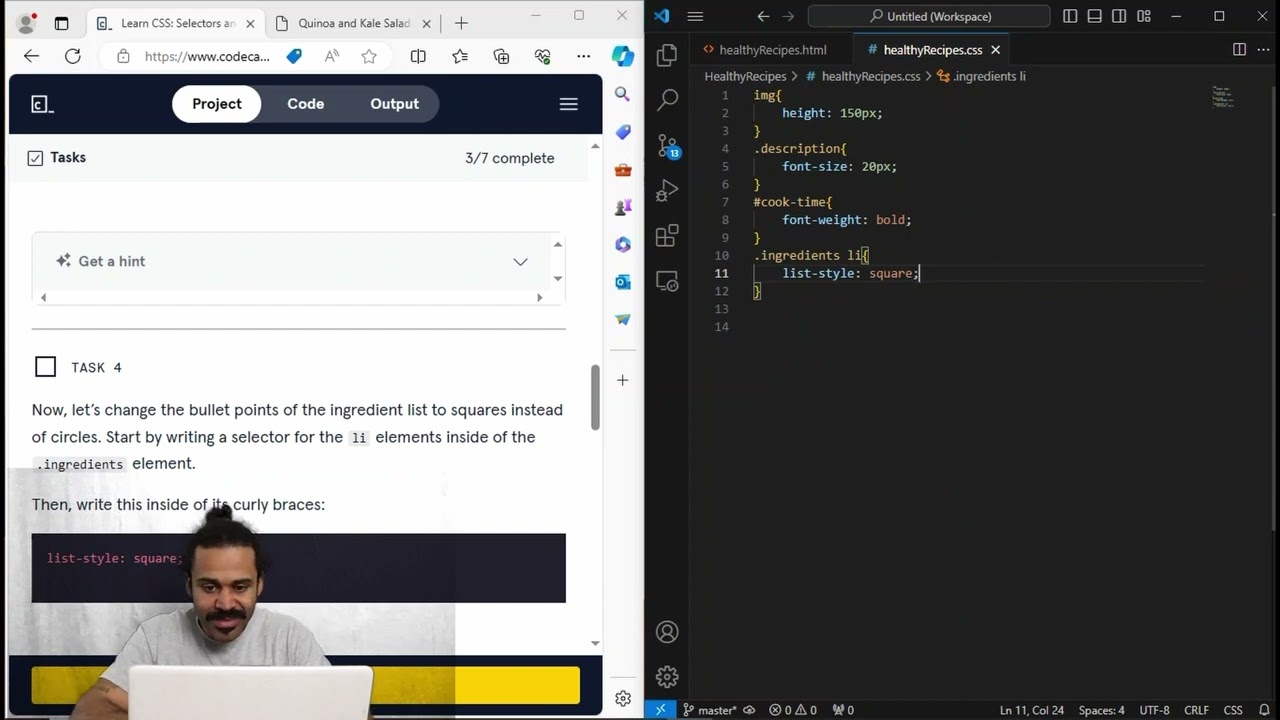
Move on to step four now let’s change the bullet points of the ingredients list to squares instead of circles start by writing a a selector for the leite elements inside of the ingredients element then write this inside of the cly Graces this style oh they changed
It all right guys so first thing first is we want to Target the leaves inside of ingredient so we’re going to class an ingredient with a nest and we want the elements inside of there and list out it’s got to be square so looks like something changed I kind
Of like it CU it’s a little bit short I’m used to doing this style tip okay if you see it’s going to run the same way we have we have we have circles with list out Ty you want to refresh the page is going to come out to
Squares um I guess you know everything is about making concise so if list St is the same thing as list St type let’s take a look refresh the page it’s the same then let’s go with the list stle and let’s start to type out the window
Okay guys so if you used to writing list stle type you can now write list out all right guys step number five next let’s make the time for each preparation step appear gray so we want to time oparation time okay so in the sty see it says write a selected for p
Elements to also have a class of time so well this is we’re targeting these three elements the P element that have a class of time so the cook times it looks like and we’re going to make the colors gray so um here you can write p c time is it C time
No you already did C time this time go ahead and write P time or you can go ahead and write time I’ll show you in both ways and we’re going to make the color gray very good so if you’re r p time or if you’re just writing time when you
Uh go to your output time 40 minutes time 4 minutes and Time 1 minute these uh lines of code should to turn gray so let’s uh refresh that and there you have it you can also just write time because it’s the class that we are targeting and you’ll have the same output
Okay let’s uh and refresh you okay so let’s go ahead and check off step number five move on to step six at the bottom of the page there’s a link to the full recipe let’s make the link of different color so let’s go take a look at what
They’re talking about the bottom of the page here okay there’s a link that takes us to the full recipe on the set page so we want to make this link a different color so my uh notice that the in semile index online 42 okay we have pclass citation and uh B external
Link uh there’s a p element with a class of citation then a link element inside of it with a class of external link navigate to the style CSS and useing to selector so and write uh a selector using the extend link class then add this line of code inside of the selector
Curling BR okay so we are writing a line of code not for the entire paragraph so we’re not going to write it for a class citation but solely just we want to Target the link so to Target the link we need to Target the Link’s class so let’s um let’s go ahead and
Copy this external link class shoot there you go and let’s go ahead and um paste that hial link class and we want to change the color to C Grand so let’s see how that works we are there we have it refresh and you see that our link change colors to see grein
So let’s go ahead and uh check off step six and move on to step seven finally let’s make the font hell better gun set instead of the default Times New Roman instead of riding multiple selectives to apply the font Family Properties write a selective that applies the font family
Attribute to all at once the selector should Target the H1 h2p okay so just thinking this um I have I have two ways um I’m thinking in my head the uh the first way is as you can see all right we have different fonts for this page okay refresh it you can
See well not different fonts but it’s all new Times Rolling so the first way that I can think of is by simply um writing CSS code for the body so if you just body for family and we change that to altica then we should have they have everything changed now
The last one it’s um I might have to do some research really quickly I’ll it on my own time but I think it’s like a stall or stop something like that let me try to First stall um and and this shouldn’t be like there you have it so you can two
Ways you can either star and it would pretty much make this code for the entire page or you can hit body but body won’t necessarily make the code for the entire page it just make the code for the entire body so um I don’t know if that makes sense but anyways star and
Body so let’s uh go ahead and check off step number seven and it looks like uh we completed our our challenge so looking at our page that we rendered we uh um went ahead and we changed the uh pixels of the uh profile is we went
Ahead and we changed the uh size of the um the the uh recipe description uh we we change the depths of of certain aspects and made it Bolder we change colors so it could pop and stand out so there you go so what you’re going to do now is if you worked outside
Of the code Academy’s text editor is simply uh copy your entire CSS file that you coded and let’s go ahead and let paste it inside of the um the uh code academy text editor so I already completed this project but if you just simply go back paste the work
That we just did and we run it then in our output we should be uh outputting the same web page as our cademy website so guys uh first of all congratulations on completing the uh the project I hope that this walk through um helped you complete it but also
Understand uh understand this project and um have a look at my YouTube page for more uh code academy walkth through projects have a great day